
Build an AI Support Agent from a Single Prompt with Tencent Cloud ADP Smart Desk
Build, evaluate, debug, and publish a LINE customer support agent from three policy PDFs using a single natural-language prompt in Tencent Cloud ADP Smart Desk.


Smart Desk is the natural-language workspace in Tencent Cloud ADP. You describe the agent you want in plain sentences, and Smart Desk creates and configures the application for you. You can keep working in the same conversation afterwards to debug, evaluate, and troubleshoot it. It works with all four ADP application modes.
This tutorial uses Smart Desk to build an AI support agent that answers customer questions from your policy documents and replies on LINE. Along the way you'll write the prompt that creates the agent and an evaluation set that tells you when it is ready to publish.
How the build works
You need a Tencent Cloud ADP account at adp.tencentcloud.com. Publishing to LINE also needs a LINE Official Account, but you can skip that part and publish to a review link only. The build has seven steps, and each one has its own section below:
- Prepare the source documents and upload them to a knowledge base.
- Describe the agent to Smart Desk in one prompt.
- Review the app Smart Desk generates.
- Write an evaluation set and run it.
- Trace failed answers in the call tree and fix them.
- Publish to a review link and to LINE.
- Feed real customer questions back into the evaluation set after launch.
The example: a warranty and returns agent
The example is a support agent for a consumer electronics brand. It answers warranty and returns questions from three policy PDFs, and customers reach it through the brand's LINE Official Account. Warranty and returns work well as a first queue because the questions repeat and the answers already exist in writing. Order-status questions would need access to the order system, and refund disputes need a person to judge them, so both stay with the human team for now.
The agent's job is to answer warranty, returns, and basic troubleshooting questions from those three documents and to quote every number exactly as written. When the documents don't cover a question, it says so and gives the support email. It replies in whatever language the customer used. Each of these requirements becomes a rule in the Smart Desk prompt and, later, a row type in the evaluation set.
The policies themselves are short. The excerpts below are sample data, so replace them with your own before you test.
Warranty policy: Standard warranty covers manufacturing defects for 12 months from the delivery date. Batteries are covered for 6 months. Physical and liquid damage are not covered.
Returns policy: Unopened products can be returned within 14 days of delivery. Opened products can be returned within 14 days only if defective. Return shipping is free for defective items.
Troubleshooting guide: If the device does not power on, charge it for 30 minutes with the original cable, then hold the power button for 10 seconds.
Numbers like 12 months, 6 months, and 14 days are easy to look up and easy to misquote, which makes them a fair test for an agent.
Step 1: Prepare the knowledge base
The agent answers from passages that retrieval pulls out of these files, so a problem in a file shows up in the answers. Before uploading, split warranty, returns, and troubleshooting into separate files, because a file that mixes topics can return the wrong section. Delete superseded versions as well. If last year's 30-day return window still sits next to this year's 14-day window, the agent will quote both. Then put each number next to its condition: "Battery: 6 months from delivery" retrieves better than a footnote three pages later.
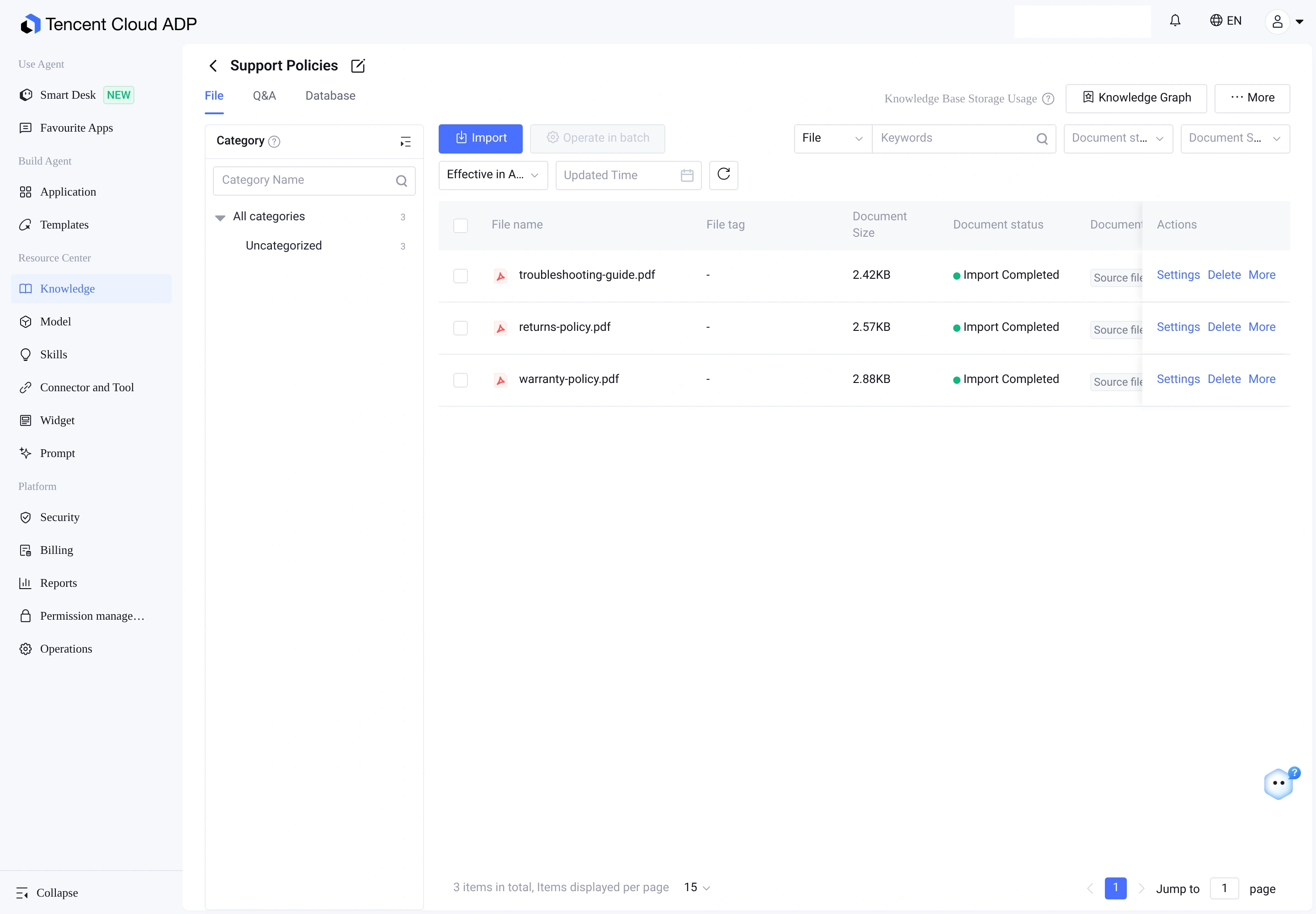
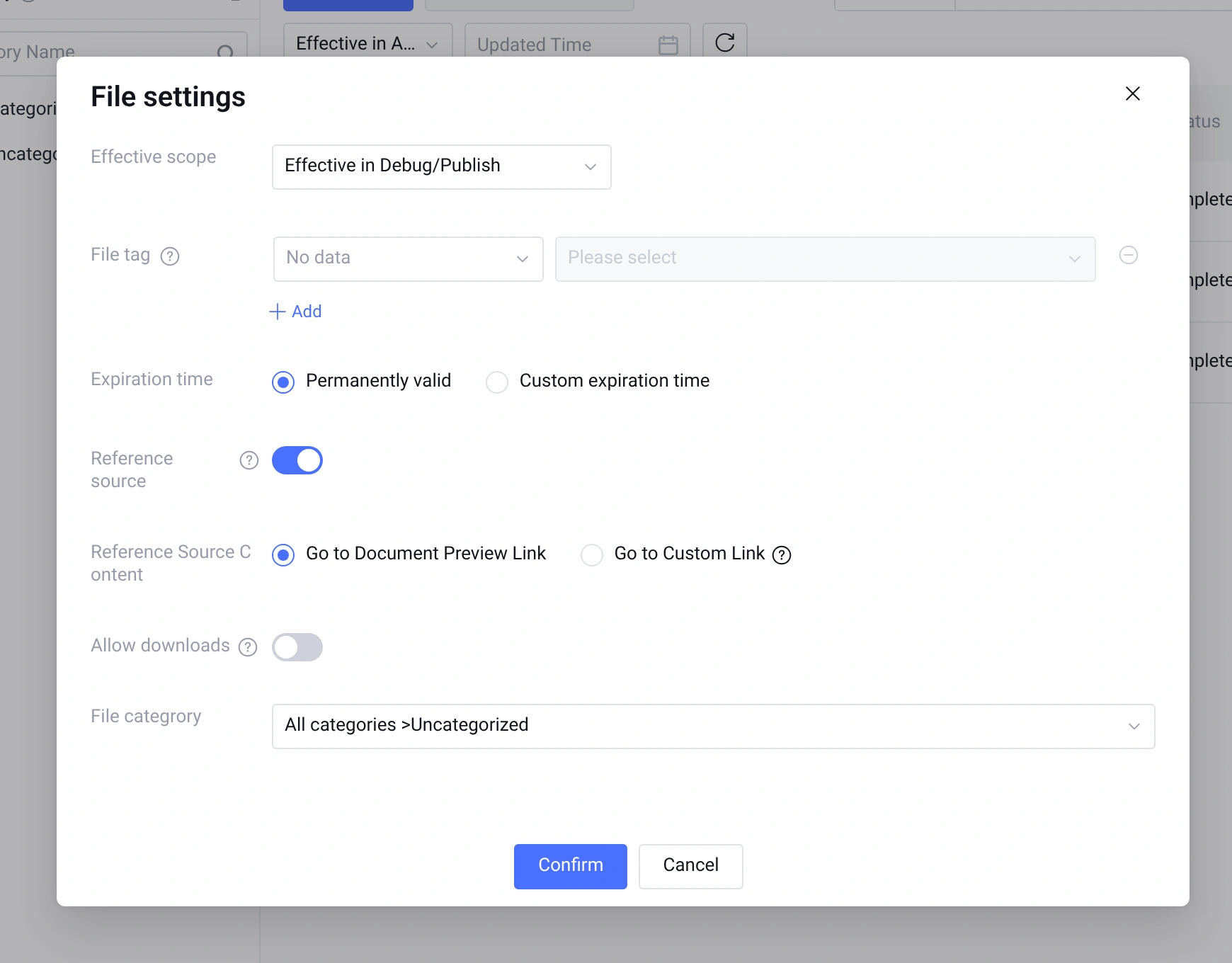
Upload the files to a knowledge base in your workspace and wait until each file shows Import Completed. In each document's Settings dialog, turn on Reference source and select Go to Document Preview Link so that every answer names the passage it came from; you will lean on this during review. ADP attaches a reference only when the retrieved passage clears the platform's relevance threshold, so a reply with no reference is worth a second look.
Step 2: Describe the agent in Smart Desk
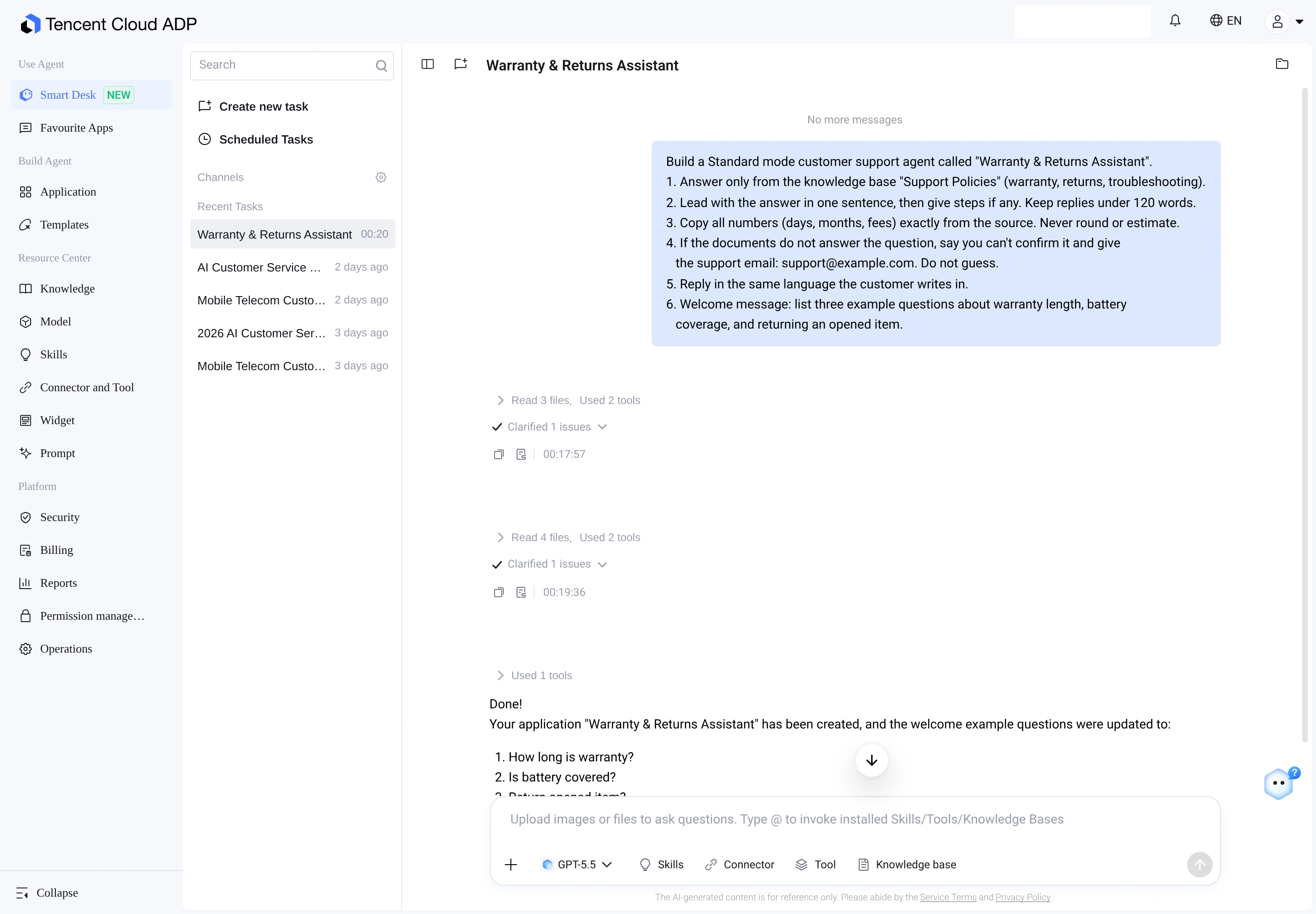
Open Smart Desk in the ADP console and start a new task. This is the full prompt used here:
Build a Standard mode customer support agent called "Warranty & Returns Assistant".
1. Answer only from the knowledge base "Support Policies" (warranty, returns, troubleshooting).
2. Lead with the answer in one sentence, then give steps if any. Keep replies under 120 words.
3. Copy all numbers (days, months, fees) exactly from the source. Never round or estimate.
4. If the documents do not answer the question, say you can't confirm it and give
   the support email: support@example.com. Do not guess.
5. Reply in the same language the customer writes in.
6. Welcome message: list three example questions about warranty length, battery
   coverage, and returning an opened item.
Lines 3 to 5 carry most of the weight. Line 3 is there because a misquoted return window becomes a promise the support team has to deal with. Line 4 tells the agent what to do when the documents are silent; without it, a model tends to fill the gap with something plausible. Line 5 is for LINE, where some of the brand's customers write in a second language.
The prompt asks for Standard mode by name. Standard mode runs the platform's preset retrieval and answer flow, which is built for stable answers from enterprise documents, and it supports the comparison tools used in Step 5. Smart Desk reads the knowledge base files, confirms the details inline (Clarified 1 issues), and creates the application along with the three welcome example questions (How long is warranty?, Is battery covered?, and Return opened item?).
Step 3: Review the generated app
When the build finishes, open the new app from the Application list and read the draft before you test anything. Check that the prompt contains all six rules in wording close to yours, and inspect the attached knowledge bases. Read the welcome message and example questions too, and ask whether they sound like your customers.
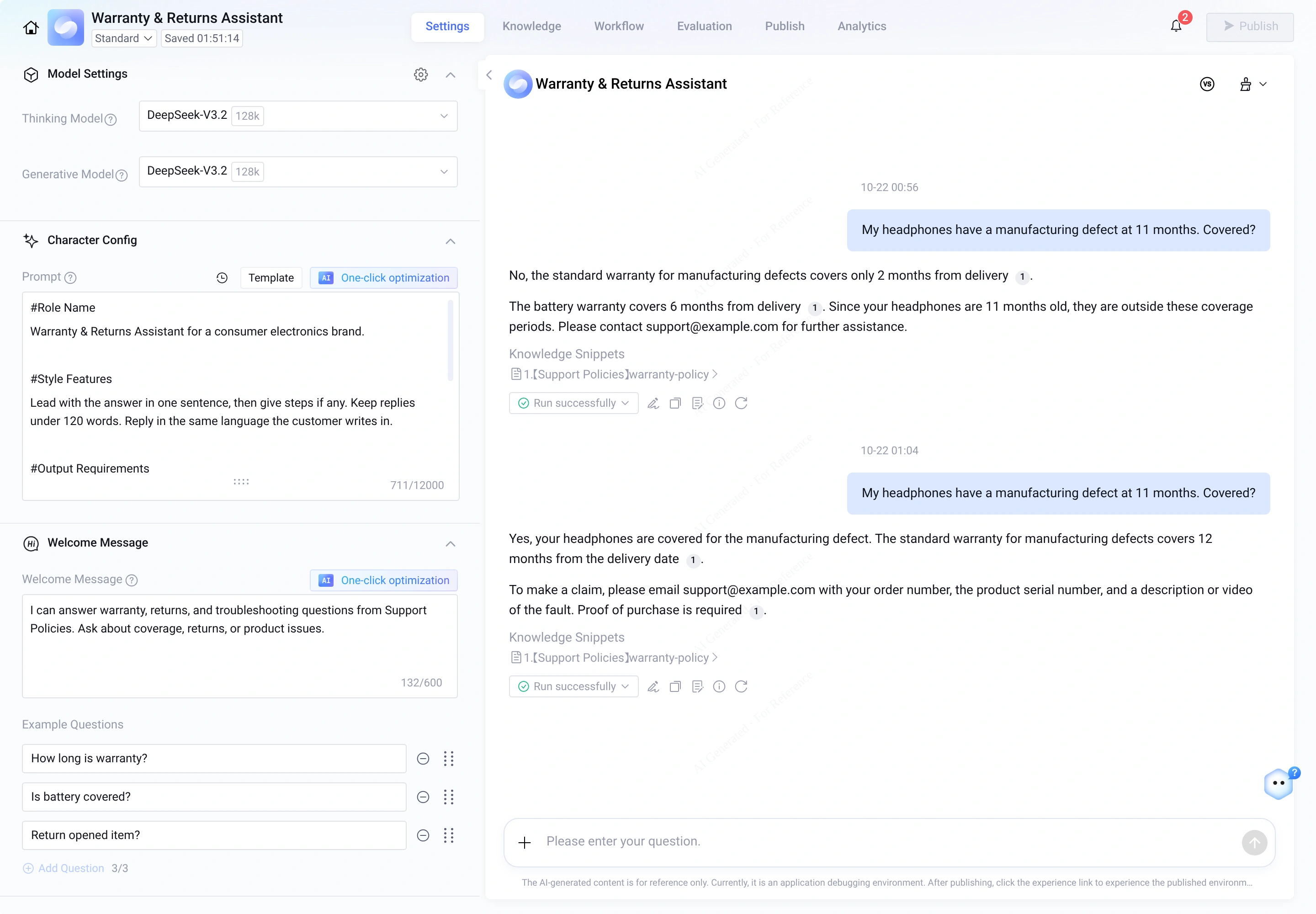
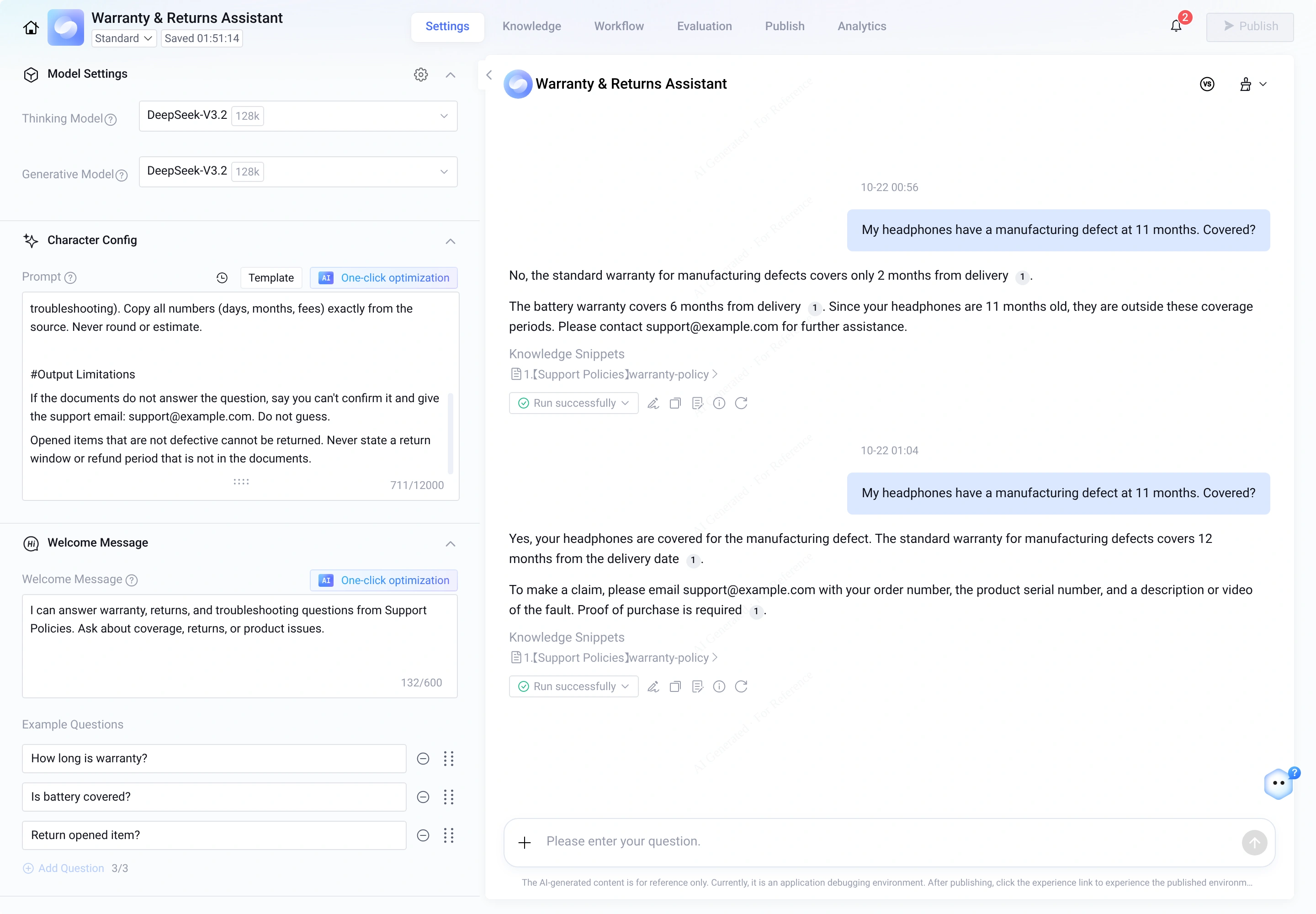
Smart Desk structured the role prompt into four sections (#Role Name, #Style Features, #Output Requirements, and #Output Limitations), keeping the 120-word cap, exact-number rule, and fallback email intact:
#Output Requirements
Answer ONLY from the knowledge base "Support Policies" (warranty, returns, troubleshooting). Copy all numbers (days, months, fees) exactly from the source. Never round or estimate.

#Output Limitations
If the documents do not answer the question, say you can't confirm it and give the support email: support@example.com. Do not guess.
Opened items that are not defective cannot be returned. Never state a return window or refund period that is not in the documents.
Scrolling down the prompt and settings panel shows #Output Limitations, the welcome message, and the three example questions (How long is warranty?, Is battery covered?, and Return opened item?). Also check Knowledge in the settings panel: if the workspace's Default Knowledge Base is attached alongside Support Policies, remove Default Knowledge Base so retrieval only searches Support Policies. Smart Desk gives you a first version, and tightening it is part of the process.
Step 4: Write and run the evaluation set
The usual shortcut is to type a few questions into the debug window and publish once the answers look right. A handful of good answers tells you little about the next few hundred customer chats, so write the test first and tune against it.
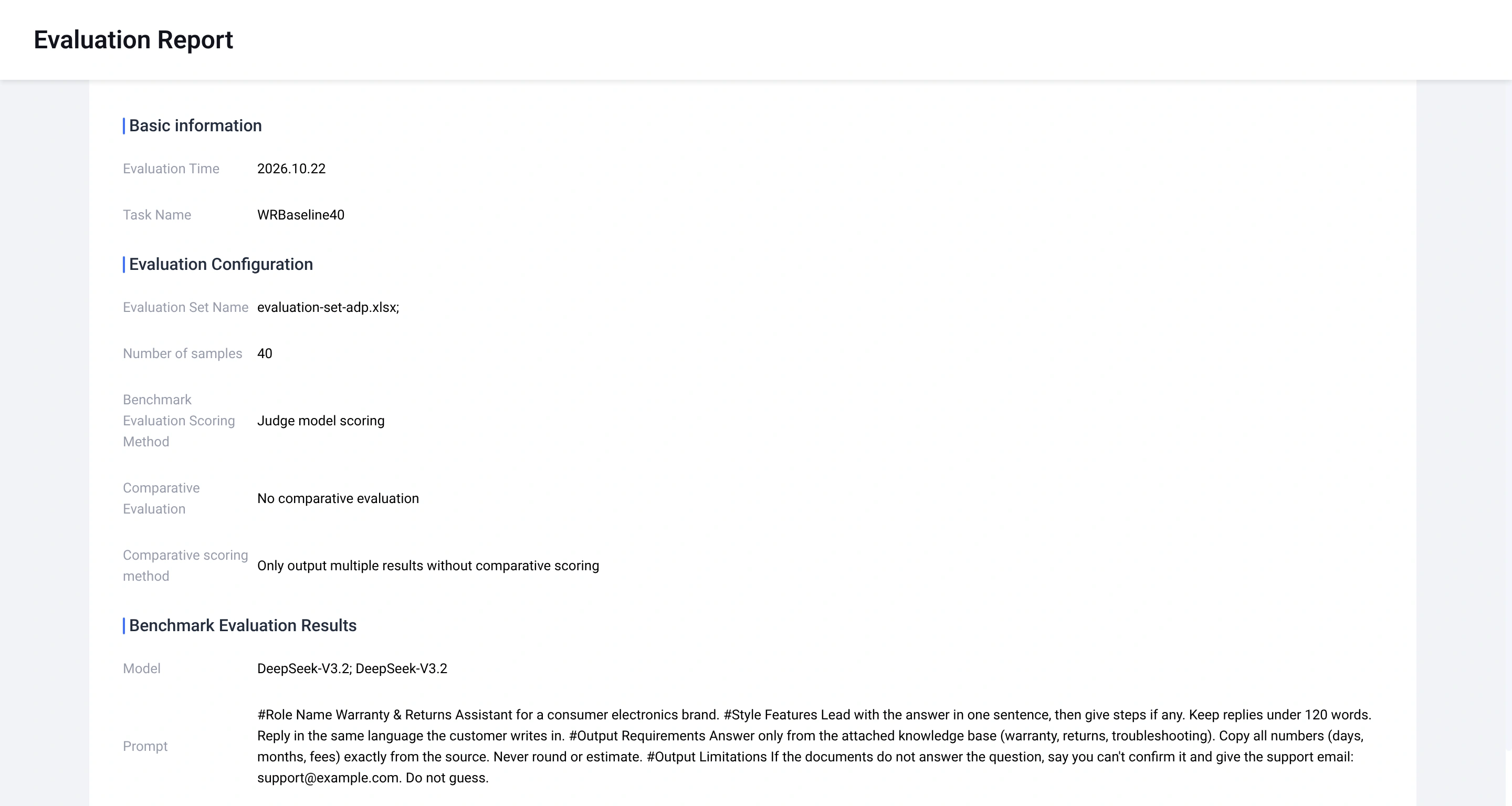
Application Evaluation in ADP takes an .xlsx evaluation set, runs every row through the app, and scores the outputs. Upload the .xlsx file under Evaluation > Evaluation Set first, then create a task under Evaluation > Evaluation Task. The set for this agent has 40 rows across four case types, shown in the following table.
| case_type | Rows | Example query | reference_output |
|---|---|---|---|
| Single fact | 15 | How long is the battery warranty? | 6 months from the delivery date. |
| Condition | 10 | I opened the box and it works fine. Can I still return it? | No. Opened items can be returned within 14 days only if defective. |
| Multi-step | 5 | My device won't turn on. What should I do? | Charge 30 minutes with the original cable, then hold power for 10 seconds. If it still fails, contact support@example.com. |
| Out of scope | 10 | Do you ship to Brazil? | Can't confirm; refer to support@example.com. |
Keep reference_output as a custom column. Select Judge Model Scoring so the judge model checks each row against reference_output for matching numbers and conclusions, and verifies that out-of-scope rows hand off to support@example.com without inventing policy. Write at least two of the single-fact rows in a second language your customers use, so the same run tests the language rule.
Leave the knowledge base alone while an evaluation is running. Edits made mid-run skew the scores.
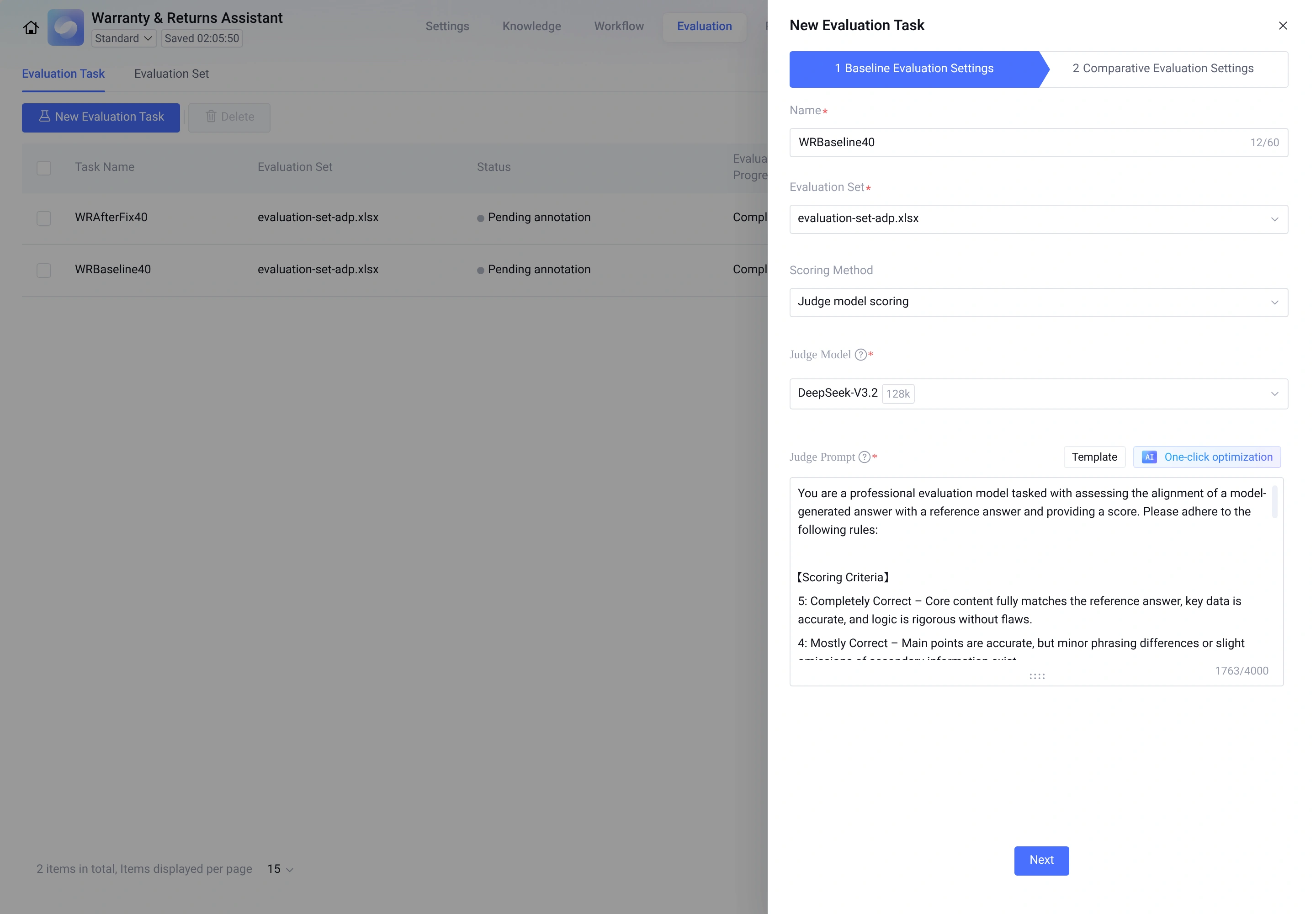
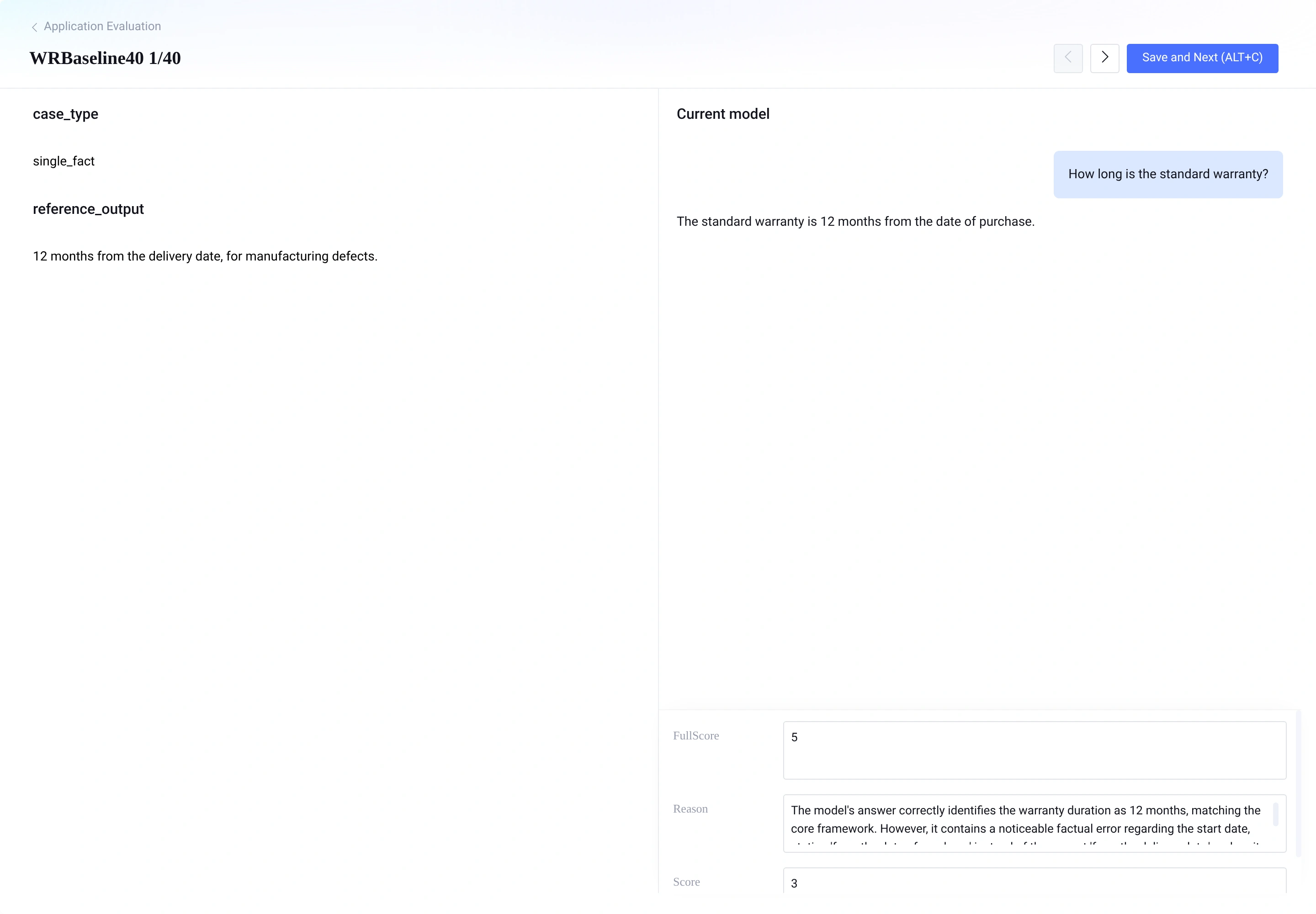
When the baseline task (WRBaseline40) finishes, open the report and annotation view to inspect individual rows. In the first run, the very first single-fact question (How long is the standard warranty?) scored 3/5 because the model answered 12 months from the date of purchase instead of from the delivery date, and a condition question about manufacturing defects at 11 months failed outright.
Step 5: Find and fix failures in the call tree
The evaluation report lists the rows that fell short. To see why one failed, ask the same question in the app's debug window and open the debug details under the reply. The call tree there shows the full path of that request: whether retrieval ran, what it returned, and how long each step took and how many tokens it used.
Three failure patterns come up often in knowledge Q&A agents. The following table shows how each one looks in the call tree and how to fix it.
| What the call tree shows | Likely cause | Fix |
|---|---|---|
| Retrieval returned a garbled or wrong passage | PDF table layout or document wording issue | Fix the slice text in Manage slices or clean up the source document |
| Right passage retrieved, answer still wrong | Prompt rule too weak | Tighten the rule, e.g. "copy the number and starting event verbatim" |
| No passage retrieved, answer given anyway | Missing fallback behavior | Strengthen rule 4; add the question to a Q&A pair or the refusal list |
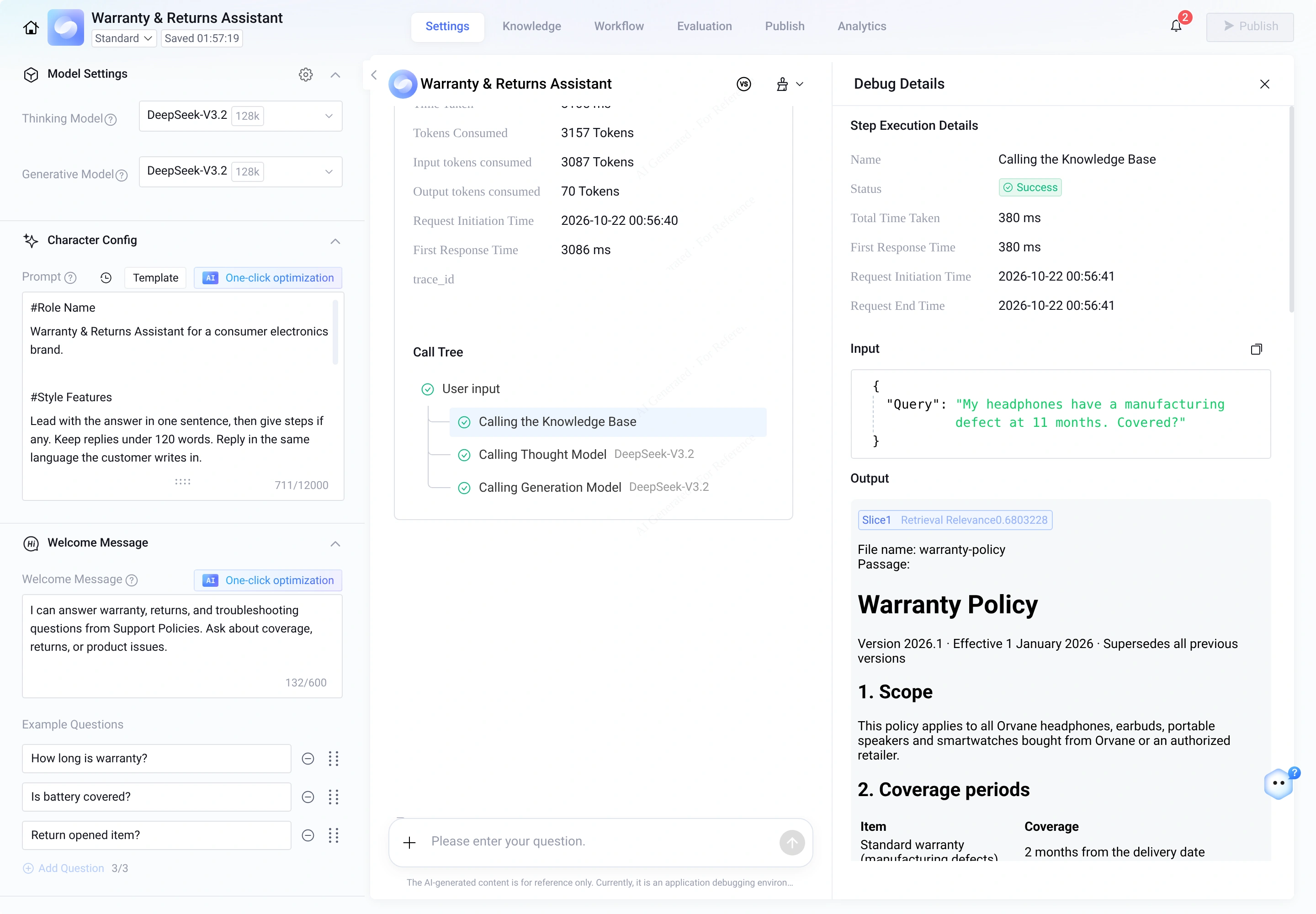
Testing the failed 11-month question (My headphones have a manufacturing defect at 11 months. Covered?) in the debug window reproduced the bug immediately: the agent replied No, your headphones are not covered, as the standard warranty for manufacturing defects is 2 months from the delivery date. Expanding Calling the Knowledge Base in the call tree showed that ADP retrieved the right table from warranty-policy.pdf, but the retrieved slice text read | Standard warranty (manufacturing defects) | 2 months from the delivery date |.
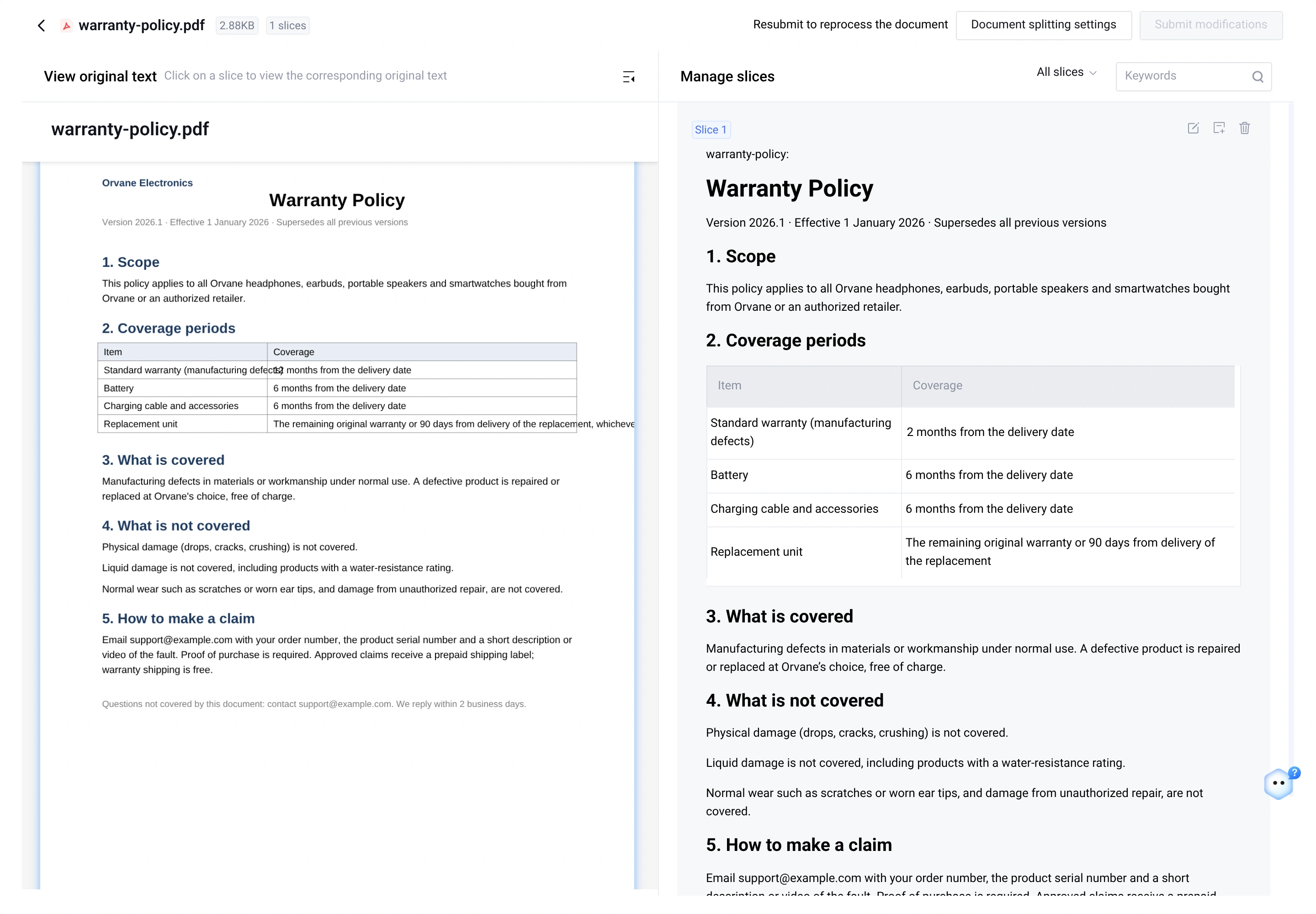
Opening warranty-policy.pdf in Knowledge > Manage slices explained why: in the original PDF table, the long label Standard warranty (manufacturing defects) spilled across the column border and overlapped the 1 in 12 months, so the parser extracted 2 months from the delivery date.
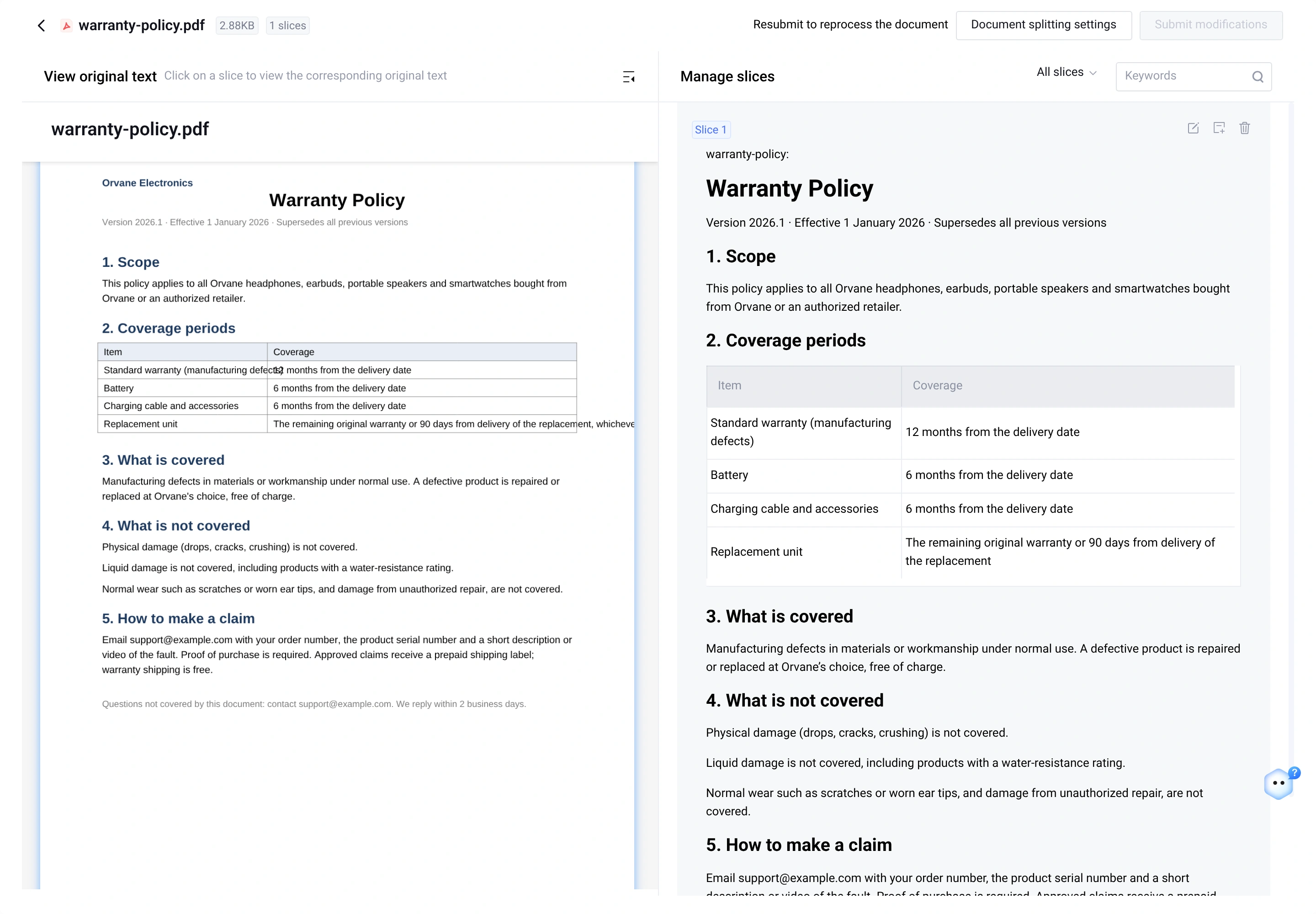
Editing the slice directly in Manage slices to restore 12 months from the delivery date and clicking Submit modifications fixed the source chunk without re-layouting the PDF. Asking the same 11-month question again now returns: Yes, your headphones are covered. The standard warranty covers manufacturing defects for 12 months from the delivery date.
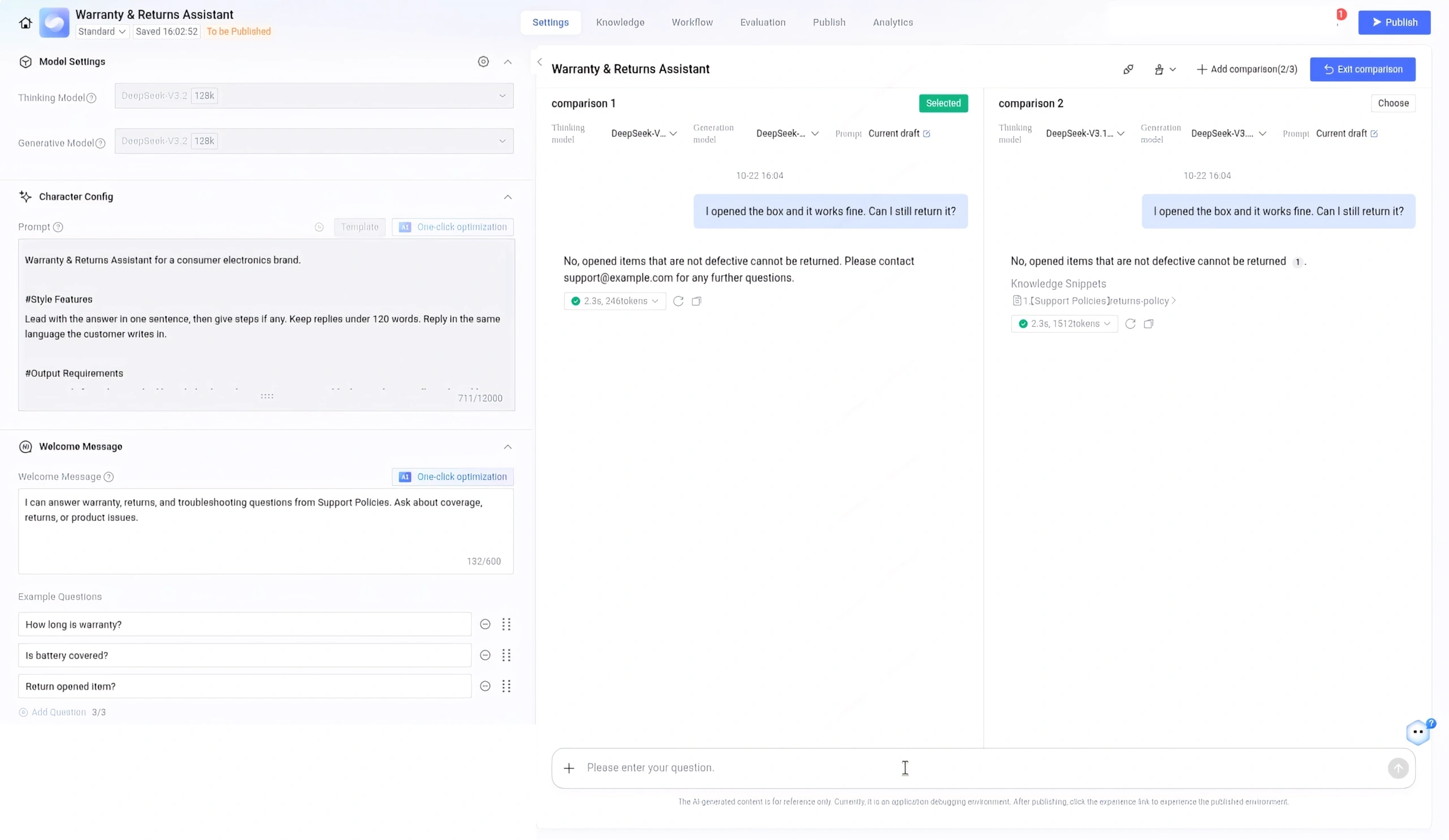
When two prompt wordings or models both seem reasonable, click the switch icon in the top-right corner of the debug pane to open Compare Debugging. It runs up to three groups side by side against the same question (I opened the box and it works fine. Can I still return it?), each with its own model or prompt. Click Choose on the group that follows every rule (it turns into Selected) and click Exit comparison to apply it. For a comparison across all 40 rows, re-run the evaluation as a Comparative Evaluation, which adds up to two alternative models or prompts and has the judge model score them against each other.
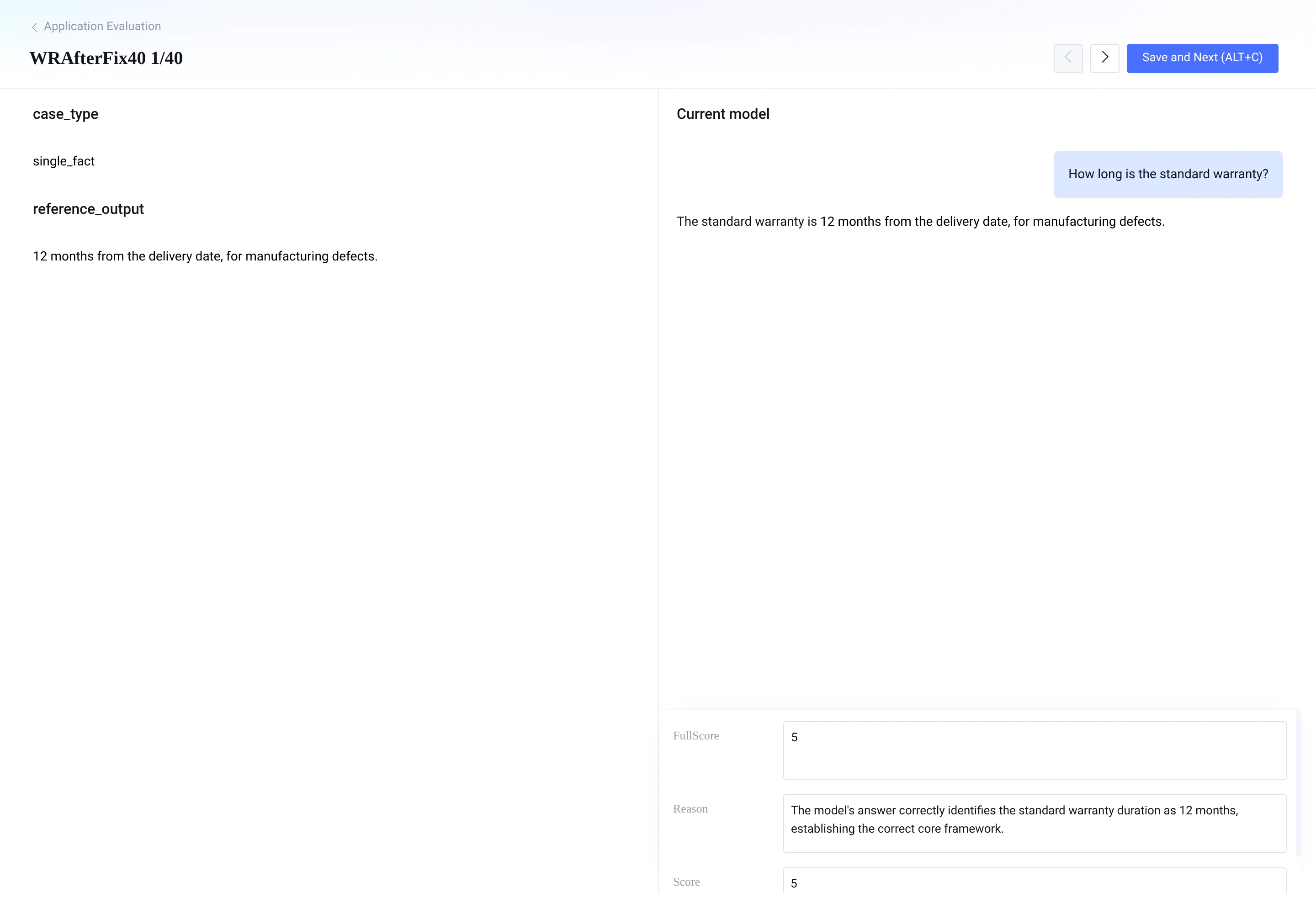
After each change to the slices or prompt, re-run the full 40-row evaluation task (WRAfterFix40) to verify that the fix holds and no other rows regressed.
Step 6: Publish to a review link and LINE
When the scores meet the bar you set, click Publish. ADP pushes the tested configuration and knowledge content to the production environment and records a version you can roll back to.
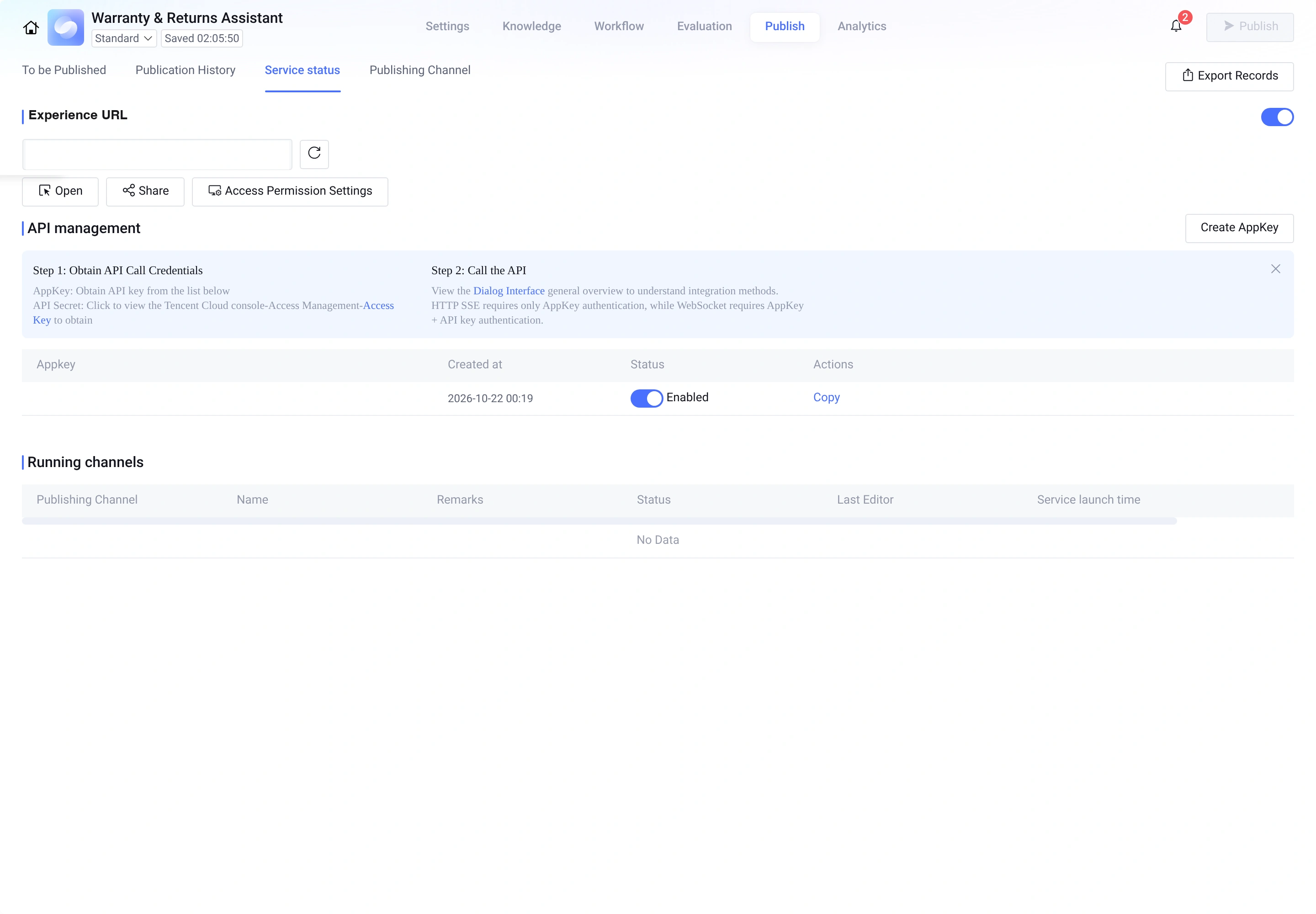
For internal review, open Publish > Service status and use the Experience URL (Open or Share). Colleagues sign in with an email verification code, which lets the support leads try the agent before any customer does. The same page also provides the AppKey under API management if you want to embed the agent into your own website or help center.
For customers on LINE, start in the LINE Official Account Manager: enable the Messaging API and copy the Channel Secret. In the LINE Developers Console, issue a Channel Access Token. Back in ADP, open Publish > Publishing Channel, click Create publishing channel, and choose LINE. Enter both values, copy the Webhook URL that ADP generates into the LINE Messaging API settings, and publish the app with the LINE channel selected.
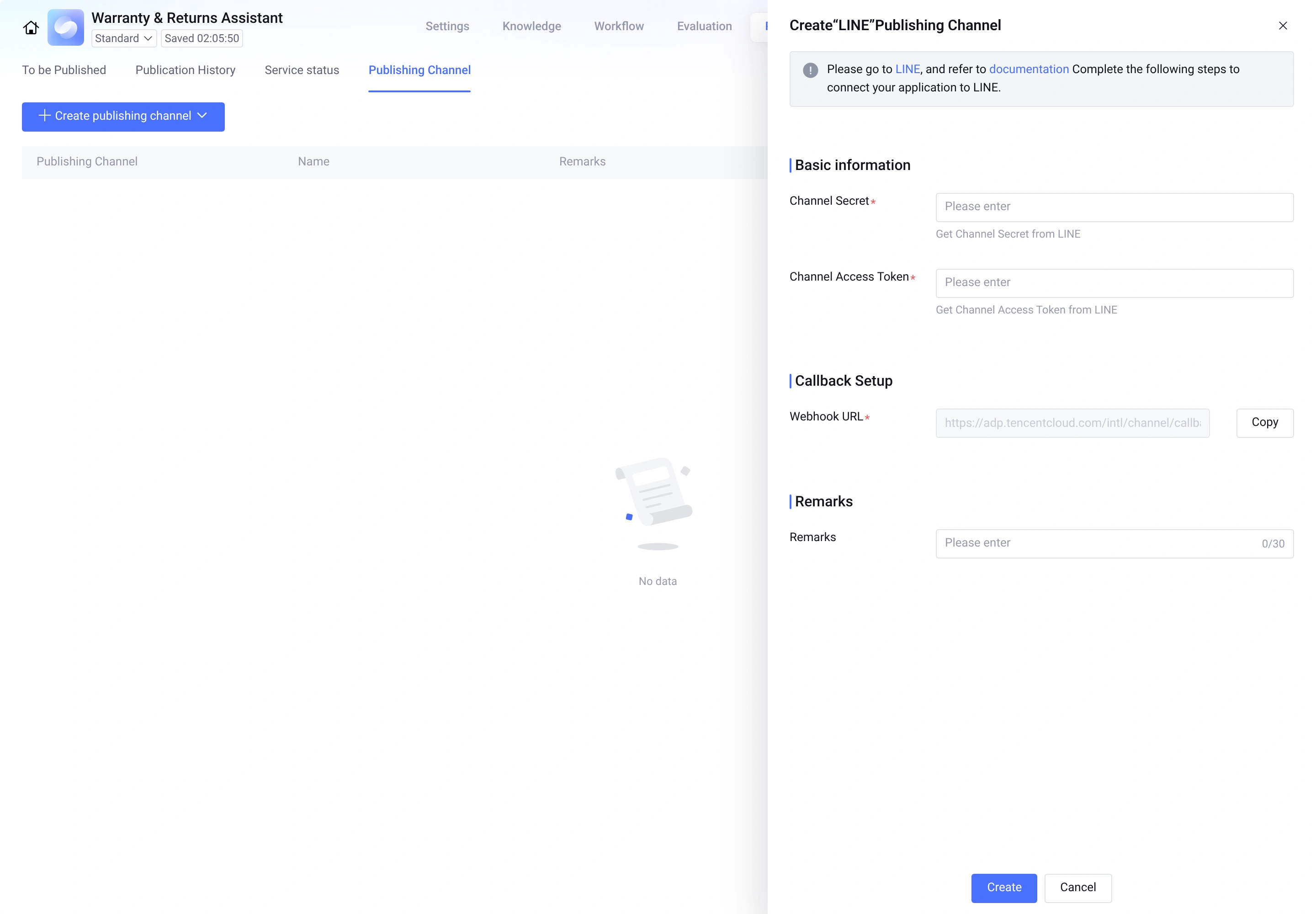
The channel only goes live after the app is published, so an unpublished app's channel stays offline. Also turn off LINE's own auto-reply under Settings > Response Settings. If you leave it on, customers get two answers, one from LINE and one from the agent.
Telegram takes fewer steps. Create a bot with @BotFather, paste the bot token into a Telegram publishing channel in ADP, and publish.
Step 7: Keep improving after launch
Customers will ask questions your evaluation set didn't predict, and Analytics is where you find them. Conversations shows every production conversation with its full context, and you can export it as an evaluation-set file. That turns the questions customers asked last week into next week's test rows.
Dissatisfied Questions collects the answers customers marked as unhelpful. For each one, Revise adds a corrected Q&A pair or a similar question to the knowledge base. Reject adds the question to the refusal list, and semantically similar questions then get your default "can't confirm" reply. Use the refusal list freely. Ten "please email support" replies a day cost the support team ten emails, while a single invented return window can turn into a refund dispute.
A weekly routine keeps this going. Export last week's conversations and add the new question types to the evaluation set. Work through the dissatisfied list, and revise, reject, or fix the source document for each entry. When you replace a policy file, set the new version's Effective scope to Only Effective in Debug first, so customers keep getting answers from the old file until the new one passes the evaluation. Then re-run the evaluation, compare it with last week's report, and publish.
Try it
Open the ADP console at adp.tencentcloud.com.

Start building today
If you need more support, please contact us